
Category: Discord Bot Tutorials
Discord Bot Tutorial#8Styling Embeds with Images and Fields (Python Example)
 Author: Mojangcam
This post was translated from the Korean original.
Contents9 sections
Hi there! This is Mojangcam 😎
In Part #7, we used a Modal to collect input from users. In Part #8, we'll cover Embeds, which make the messages your bot sends look much nicer!
An embed is a card-style message in Discord that neatly shows a title, description, fields, images, and a color. When you build things like server info, profile cards, announcements, or user rankings, it looks way better than plain text. Today I've put together an example you can copy and paste as-is, all the way through field alignment and adding thumbnails and large images!
📌 What You Need
- Python 3.8+
- discord.py 2.x (for slash commands and the latest embed features)
- A Discord bot token & the bot already invited to your server (if you set this up in earlier parts, you're good to go)
pip install -U discord.py💡 This series always uses discord.py 2.x. Slash commands won't work on older versions, so update with
-U.
📌 Step 1 - Creating a Basic Embed
You build the skeleton of an embed with discord.Embed(), then attach fields and images to it.
embed = discord.Embed(
    title="📊 Server Info",
    description="Here's this server's basic info, neatly organized in an embed!",
    color=discord.Color.blurple(),
)
Let's break it down 💡
- title : The bold title at the very top of the embed.
- description : The body text under the title.
- color : The color of the vertical bar on the left side of the embed. You can use a preset like
discord.Color.blurple()(Discord purple) or set it yourself withdiscord.Color.from_rgb(88, 101, 242).
📌 Step 2 - Adding and Aligning Fields
Use add_field() to add "name : value" items. The inline value decides whether they line up horizontally.
embed.add_field(name="Members", value="120", inline=True)
embed.add_field(name="Channels", value="18", inline=True)
embed.add_field(name="Created", value="2024-03-01", inline=False)- inline=True : Sits side by side horizontally with other inline fields. (Up to 3 per row)
- inline=False : Takes up an entire row on its own. Handy as a kind of divider.
- An empty string for name / value causes an error, so make sure they're never blank.
📌 Step 3 - Adding a Thumbnail and a Large Image
There are two kinds of images. They show up in different places, so pick the one that fits your use.
embed.set_thumbnail(url="https://picsum.photos/200")   # Small image in the top right
embed.set_image(url="https://picsum.photos/600/200")   # Large image at the bottom (banner)
embed.set_footer(text="Mojangcam Discord Bot") # Small text at the very bottom- set_thumbnail : A small thumbnail in the top right (for profile or server icons).
- set_image : A large banner image at the bottom of the embed.
- set_footer : Small gray text at the very bottom (for showing a source or the bot's name).
- ⚠️ Image URLs show up reliably when they end with an extension like
.pngor.jpg. URLs without an extension might not display.
📌 Full Code (Copy & Paste OK)
# discord.py 2.x / Python 3.8+
import discord
from discord import app_commands

intents = discord.Intents.default()
client = discord.Client(intents=intents)
tree = app_commands.CommandTree(client)

@client.event
async def on_ready():
    await tree.sync()  # Register slash commands
    print(f"{client.user} is ready!")

@tree.command(name="서버정보", description="Shows server info as an embed")
async def server_info(interaction: discord.Interaction):
    guild = interaction.guild

    embed = discord.Embed(
        title=f"📊 {guild.name} Server Info",
        description="Here's this server's basic info, neatly organized in an embed!",
        color=discord.Color.blurple(),
    )
    embed.add_field(name="Members", value=f"{guild.member_count}", inline=True)
    embed.add_field(name="Channels", value=f"{len(guild.channels)}", inline=True)
    embed.add_field(
        name="Created",
        value=guild.created_at.strftime("%Y-%m-%d"),
        inline=False,
    )

    if guild.icon:  # Use the server icon as the thumbnail if there is one
        embed.set_thumbnail(url=guild.icon.url)
    embed.set_image(url="https://picsum.photos/600/200")
    embed.set_footer(
        text="Mojangcam Discord Bot",
        icon_url=client.user.display_avatar.url,
    )

    await interaction.response.send_message(embed=embed)

client.run("PASTE_YOUR_BOT_TOKEN_HERE")- guild : The server object where the command was run. You can pull the name, member count, and creation date straight from it.
- member_count : Automatically gets the number of members in the server.
- display_avatar.url : The URL of the bot's profile picture. I used it as the footer icon.
📌 Result
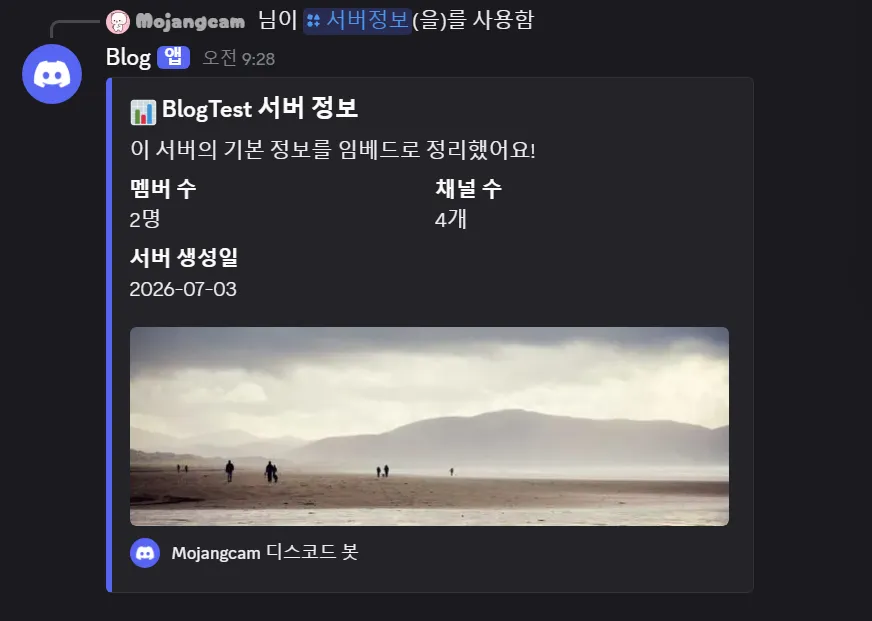
Start the bot and type /서버정보 in your server, and you'll get a nice card with a title + member and channel counts side by side + the creation date on its own row + a thumbnail and banner image!
📌 Common Errors
- The image doesn't show up — Cause: The URL has no extension or points to a private (login-required) address. Fix: Use a public image URL that ends with
.pngor.jpg. - HTTPException: In embeds.0.fields.0.value: This field is required — Cause:
valueis an empty string. Fix: Put at least one character in the field value. /서버정보doesn't appear — Cause: Missingtree.sync()or a sync delay. Fix: Make sure you sync inon_ready. Global sync can take up to an hour, so for testing, guild sync is much faster.- Members shows
Noneand Channels shows0(this is where I actually got stuck!) — Symptom: The server name doesn't show either, Members isNone, Channels is0, and only the creation date is correct. Cause: The bot isn't actually in that server. If you only add the app via "User Install", the slash command still shows up, but the bot isn't a member of the server, so it can't access server info (fetch_guildreturns404 Unknown Guild, error code10004). Fix: In the Developer Portal, go to OAuth2 → URL Generator, check thebot+applications.commandsscopes to create an invite link, and use that link to invite the bot to your server. If you can see the bot in the server's member list, you're done! Run/서버정보again and the member and channel counts will show up correctly.
💬 Wrapping Up
Today we used an Embed to dress up bot messages like cards, with a title, description, color, aligned fields, a thumbnail, and a banner image. Now you can send good-looking info cards instead of plain text! 🙌
In Part #9, we'll combine buttons + embeds to build "embed pagination" that lets you flip through pages. Stay tuned!
📚 Discord Bot Tutorial Series
- #5 Button Interactions
- #6 Dropdown (Select Menu)
- #7 Getting Input with a Modal
- #8 Styling Embeds with Images and Fields ← You are here!
- #9 Embed Pagination (coming soon)
Series · Part 8 of 32
Discord Bot Tutorial
- #1Discord Bot Tutorial - Mastering Slash Commands!
- #2Adding Options (Arguments) to Slash Commands!
- #3Adding Subcommands to Slash Commands!
- #4Sending Embeds with Slash Commands!
- #5Implementing Button Interactions!
- #6Implementing a Dropdown (Select Menu)!
- #7Getting User Input with a Modal (Python Example)
- #8Styling Embeds with Images and Fields (Python Example)You are here
- #9Connecting AI (Claude & ChatGPT API) to Your Bot! (Python Example)
- #10Adding Multi-Language (i18n) Support! (Python Example)
- #11Building a Web Dashboard with Flask! (Python Example)
- #12Managing Command Cooldowns and Permissions! (Python Example)
- #13Automating Roles and Channels to Manage Your Server! (Python Example)
- #14Saving Data! JSON vs SQLite (Python Example)
- #15슬래시 명령어 그룹(Group)으로 명령어 정리하기! (파이썬 예제) (Korean)
- #16리마인더·알림 기능 만들기! 봇이 먼저 말 걸게 하기 (파이썬 예제) (Korean)
- #17RAG로 문서 기반 답변봇 만들기! 우리 서버 전용 FAQ 봇 (파이썬 예제) (Korean)
- #18투표(Poll) 기능 만들기! 다수결로 정하는 서버 규칙 (파이썬 예제) (Korean)
- #19Cog로 코드 쪼개기! 1000줄 봇도 안 더러워지는 구조 (파이썬 예제) (Korean)
- #20자동 환영 메시지·온보딩 만들기! 규칙 동의 버튼으로 자동 역할 부여 (파이썬 예제) (Korean)
- #21키워드 자동응답·금지어 필터 만들기! 경고 누적으로 자동 제재까지 (파이썬 예제) (Korean)
- #22슬래시 명령어 자동완성(Autocomplete) 만들기! 금지어를 골라서 추가·삭제 (파이썬 예제) (Korean)
- #23aiosqlite로 비동기 DB 제대로 설계하기! JSON 탈출 (파이썬 예제) (Korean)
- #24채널 난독화(Channel Obfuscation) 대응하기! 11/16부터 안 보이는 채널이 생겨요 (파이썬 예제) (Korean)
- #25봇이 죽지 않게! 에러 핸들링·로깅 체계 잡기 (파이썬 예제) (Korean)
- #26티켓(Ticket) 문의 시스템 만들기! 버튼 하나로 1:1 상담 채널 자동 생성 (파이썬 예제) (Korean)
- #27티켓 담당자 배정·우선순위 만들기! 스태프가 여러 명이어도 안 꼬이게 (파이썬 예제) (Korean)
- #28레벨·경험치(XP) 시스템 만들기! 채팅할수록 레벨업, 랭킹판까지 (파이썬 예제) (Korean)
- #29화폐·상점(Economy) 시스템 만들기! 코인 벌어서 아이템 사기 (파이썬 예제) (Korean)
- #30Build a Poll & Survey Bot! Native Polls + Buttons with Real-Time Tallies (Python Example) 🗳️
- #32Build a Server Log & Audit Log Channel! Auto-Log Message Deletes, Edits, Joins/Leaves, and Kicks (Python Example) 🕵️
- #33임시 음성방 확장, 파티방 만들기! 방장 위임·강퇴·초대 전용(비공개) 방 + 전용 채팅방 자동 생성 (파이썬 예제) 🎉 (Korean)
Show all 32Collapse
