
Category: Discord Bot Tutorials
Discord Bot Tutorial#13Automating Roles and Channels to Manage Your Server! (Python Example)
 Author: Mojangcam
This post was translated from the Korean original.
Contents9 sections
Hi there! This is Mojangcam 😎
In Part #12, we learned how to keep your bot safe with command cooldowns and permissions. In this part, #13, we're going one step further and handing a server admin's repetitive chores over to the bot entirely. We'll build exactly three automations today.
- Automatically give new members a role when they join (welcome role)
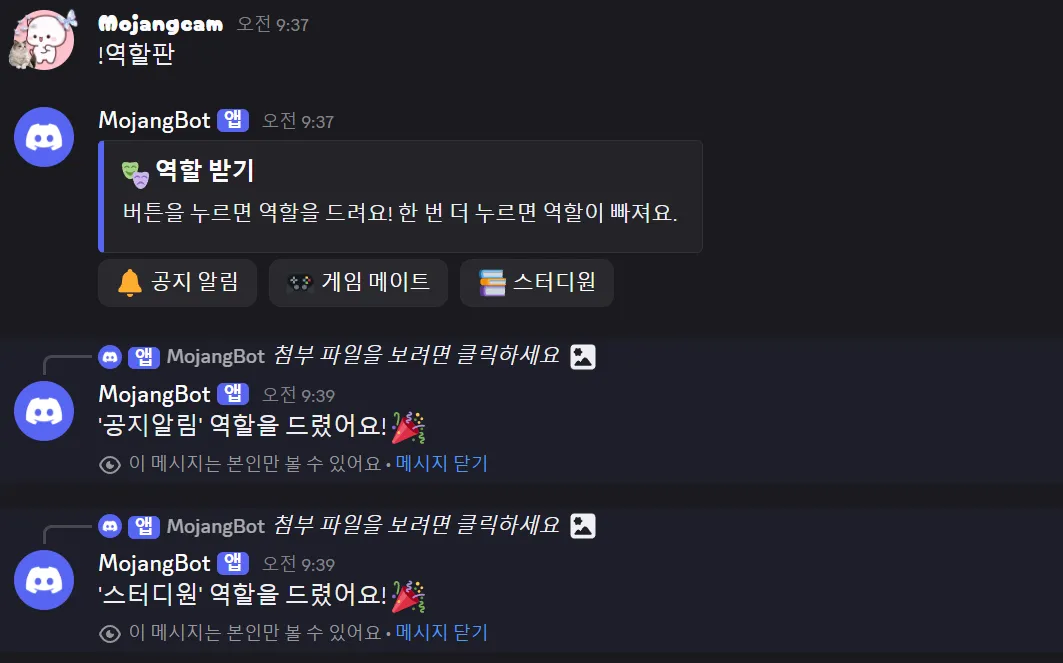
- Let members grab the roles they want with one button (role button panel)
- Automatically create a personal room when someone joins a voice channel (Join to Create)
As your server grows, chores like "give the new folks a role," "hand out roles to people who want to play games," and "make a meeting room" keep repeating forever. If you do them by hand, you'll be up all night and still not finish. Leave them to the bot, and it handles them on its own 24/7. Let's get started! 🙌
📌 What You Need
First, let's get the development environment ready.
- Python 3.9 or later (
discord.py2.7 requires 3.9+) discord.py2.x (the latest stable version as of July 2026 is 2.7.1)
Installing the library takes just one line in your terminal.
pip install -U discord.pyThis part also absolutely requires the Privileged Intents setting. To detect new members joining, you have to turn on the Server Members Intent.
- Go to the Discord Developer Portal → select your bot
- Bot tab on the left → Privileged Gateway Intents
- Turn on Server Members Intent ✅ (if you'll use message commands, turn on Message Content Intent too)
Finally, check the permissions of the bot's role on your server. For the automations to work, the bot needs the permissions below.
- Manage Roles — add and remove roles
- Manage Channels — create and delete voice channels
- Move Members — move members into the rooms it creates
💡 The most important point! Any role the bot hands out must sit below the bot's own role. In Server Settings → Roles, drag the bot's role up toward the top. Miss this, and you'll get the
Forbiddenerror we'll see later.
📌 Step 1 - Automatically Giving New Members a Role
Let's start with the most basic one: an automatic welcome role. The moment someone joins the server, the on_member_join event fires. All you have to do is find the role there and attach it.
import discord
from discord.ext import commands

intents = discord.Intents.default()
intents.members = True          # Detect member joins (privileged intent)
intents.message_content = True  # For prefix commands

bot = commands.Bot(command_prefix="!", intents=intents)

AUTO_ROLE_NAME = "Sprout"   # Role name to give automatically on join

@bot.event
async def on_member_join(member: discord.Member):
    role = discord.utils.get(member.guild.roles, name=AUTO_ROLE_NAME)
    if role is not None:
        await member.add_roles(role)
        print(f"👋 Gave {member.name} the '{role.name}' role!")
Let's break it down 💡
intents.members = True: The switch that detects members joining and leaving. If it's off,on_member_joinnever runs at all.on_member_join(member): An event that's called automatically every time a new member joins.memberholds the info about the person who joined.discord.utils.get(member.guild.roles, name=...): Finds the role with a matching name in the server's role list. It returnsNoneif there isn't one, so always check.await member.add_roles(role): Attaches the role you found to that member. This is the key line!
Now, if you create a role called "Sprout" on your server ahead of time, new members show up wearing the Sprout role the moment they join. 🌱
📌 Step 2 - Self-Assigning Roles with a Single Button
Remember learning about buttons back in Part #5 (Buttons)? This time, we'll use those buttons to build a panel where members pick their own roles. No more admins handing out roles one by one.
There's one concept you really need to know here: the Persistent View. Normally your buttons stop working when you restart the bot, but if you follow the two conditions below, they keep working even after a restart.
- The View has
timeout=None - Every button has a
custom_id
# Button role list (custom_id, role name, button label, emoji)
BUTTON_ROLES = [
    ("role_notice", "Announcements", "Announcements", "🔔"),
    ("role_game",   "GameMate", "Game Mates", "🎮"),
    ("role_study",  "StudyGroup",  "Study Group",   "📚"),
]

class RoleButton(discord.ui.Button):
    def __init__(self, custom_id, role_name, label, emoji):
        super().__init__(
            label=label, emoji=emoji,
            style=discord.ButtonStyle.secondary,
            custom_id=custom_id,        # Persistent Views require a custom_id!
        )
        self.role_name = role_name

    async def callback(self, interaction: discord.Interaction):
        role = discord.utils.get(interaction.guild.roles, name=self.role_name)
        if role is None:
            await interaction.response.send_message(
                f"❌ The '{self.role_name}' role doesn't exist. Please create it on the server first!",
                ephemeral=True)
            return
        if role in interaction.user.roles:
            await interaction.user.remove_roles(role)
            msg = f"Removed the '{role.name}' role. 👋"
        else:
            await interaction.user.add_roles(role)
            msg = f"You got the '{role.name}' role! 🎉"
        await interaction.response.send_message(msg, ephemeral=True)

class RoleView(discord.ui.View):
    def __init__(self):
        super().__init__(timeout=None)   # Persistent Views need timeout=None!
        for custom_id, role_name, label, emoji in BUTTON_ROLES:
            self.add_item(RoleButton(custom_id, role_name, label, emoji))
Let's break it down 💡
custom_id: A unique name tag you attach to each button. After a restart, it lets the bot recognize "Ah, this button is that button!" It's a must-have for Persistent Views.callback(self, interaction): The function that runs when the button is pressed.interaction.useris the person who pressed it.role in interaction.user.roles: If they already have the role, it's removed (remove_roles); if not, it's added (add_roles). So a single button works as a toggle.ephemeral=True: A "message only you can see." It quietly lets the user know without cluttering anyone else's screen.
Now let's add a command that posts this panel in chat, plus the code that keeps the buttons alive after a restart.
class MyBot(commands.Bot):
    def __init__(self):
        super().__init__(command_prefix="!", intents=intents)

    async def setup_hook(self):
        self.add_view(RoleView())   # Revive buttons after a restart

bot = MyBot()

@bot.command(name="역할판")
@commands.has_permissions(administrator=True)
async def role_panel(ctx: commands.Context):
    embed = discord.Embed(
        title="🎭 Get Your Roles",
        description="Press a button to get a role! Press it again to remove the role.",
        color=0x5865F2,
    )
await ctx.send(embed=embed, view=RoleView())setup_hook+add_view: Re-registers the Persistent View when the bot starts up. Thanks to these two lines, buttons you posted earlier keep working even after you restart the bot.@commands.has_permissions(administrator=True): Makes sure only admins can use the!역할판(role panel) command.
📌 Step 3 - Auto-Creating a Personal Voice Channel When Someone Joins
Last up is Join to Create, which pretty much every server uses these days. You set up one voice channel like "➕ Create Channel," and when someone joins it, the bot instantly creates a room just for them and moves them there. When the room empties out, it disappears automatically, so your server stays tidy too.
Voice channel moves are detected with the on_voice_state_update event.
CREATOR_CHANNEL_ID = 123456789012345678   # ID of the '➕ Create Channel' voice channel
temp_channels = set()                     # Stores the IDs of temp channels we created

@bot.event
async def on_voice_state_update(member, before, after):
    # (Create) When someone joins the 'Create' channel, make a personal channel and move them
    if after.channel is not None and after.channel.id == CREATOR_CHANNEL_ID:
        new_channel = await member.guild.create_voice_channel(
            name=f"🔊 {member.display_name}'s Room",
            category=after.channel.category,
        )
        temp_channels.add(new_channel.id)
        await member.move_to(new_channel)

    # (Delete) Remove a temporary channel we created once it's empty
    if before.channel is not None and before.channel.id in temp_channels:
        if len(before.channel.members) == 0:
            await before.channel.delete()
            temp_channels.discard(before.channel.id)
Let's break it down 💡
on_voice_state_update(member, before, after): Runs every time someone moves between voice channels.beforeis the channel they left, andafteris the channel they joined.after.channel.id == CREATOR_CHANNEL_ID: Checks whether the place they just joined is the "Create" channel. If it is, time to make a new room!create_voice_channel(name, category): Creates a personal voice channel. If you pass the samecategoryas the original, it shows up neatly under the same category.member.move_to(new_channel): Whooshes the member into the room you just made.len(before.channel.members) == 0: If nobody's left in the room they left, it's removed withdelete().temp_channelsis a safety net so only "rooms we created" get deleted.
💡 You can get
CREATOR_CHANNEL_IDby turning on Developer Mode in Discord (User Settings → Advanced → Developer Mode), then right-clicking the voice channel used for creating rooms → "Copy Channel ID."
📌 Full Code (Copy & Paste OK)
Copy the code below and just change TOKEN, AUTO_ROLE_NAME, CREATOR_CHANNEL_ID, and BUTTON_ROLES to match your server, and it runs right away.
# discord.py 2.x (based on 2.7.1) / Python 3.9+
import discord
from discord.ext import commands

# ── Settings ──────────────────────────
TOKEN = "PUT_YOUR_BOT_TOKEN_HERE"
AUTO_ROLE_NAME = "Sprout"                     # Role name to give automatically on join
CREATOR_CHANNEL_ID = 123456789012345678       # ID of the '➕ Create Channel' voice channel

# Button role list (custom_id, role name, button label, emoji)
BUTTON_ROLES = [
    ("role_notice", "Announcements", "Announcements", "🔔"),
    ("role_game",   "GameMate", "Game Mates", "🎮"),
    ("role_study",  "StudyGroup",  "Study Group",   "📚"),
]

intents = discord.Intents.default()
intents.members = True          # Detect member joins (privileged intent)
intents.message_content = True  # For prefix commands
# voice_states is already included in default().

# ── Button Role View ──────────────────
class RoleButton(discord.ui.Button):
    def __init__(self, custom_id, role_name, label, emoji):
        super().__init__(
            label=label, emoji=emoji,
            style=discord.ButtonStyle.secondary,
            custom_id=custom_id,        # Persistent Views require a custom_id!
        )
        self.role_name = role_name

    async def callback(self, interaction: discord.Interaction):
        role = discord.utils.get(interaction.guild.roles, name=self.role_name)
        if role is None:
            await interaction.response.send_message(
                f"❌ The '{self.role_name}' role doesn't exist. Please create it on the server first!",
                ephemeral=True)
            return
        if role in interaction.user.roles:
            await interaction.user.remove_roles(role)
            msg = f"Removed the '{role.name}' role. 👋"
        else:
            await interaction.user.add_roles(role)
            msg = f"You got the '{role.name}' role! 🎉"
        await interaction.response.send_message(msg, ephemeral=True)

class RoleView(discord.ui.View):
    def __init__(self):
        super().__init__(timeout=None)   # Persistent Views need timeout=None!
        for custom_id, role_name, label, emoji in BUTTON_ROLES:
            self.add_item(RoleButton(custom_id, role_name, label, emoji))

# ── Bot Core ──────────────────────────
class MyBot(commands.Bot):
    def __init__(self):
        super().__init__(command_prefix="!", intents=intents)

    async def setup_hook(self):
        # Re-register the Persistent View so buttons keep working after a restart
        self.add_view(RoleView())

bot = MyBot()
temp_channels = set()   # Stores the IDs of temporary voice channels we created

@bot.event
async def on_ready():
    print(f"✅ Logged in as {bot.user}!")

# 1) Automatically give a role on join
@bot.event
async def on_member_join(member: discord.Member):
    role = discord.utils.get(member.guild.roles, name=AUTO_ROLE_NAME)
    if role is not None:
        await member.add_roles(role)
        print(f"👋 {member.name} → '{role.name}' role assigned")

# 2) Post the role button panel (admins only)
@bot.command(name="역할판")
@commands.has_permissions(administrator=True)
async def role_panel(ctx: commands.Context):
    embed = discord.Embed(
        title="🎭 Get Your Roles",
        description="Press a button to get a role! Press it again to remove the role.",
        color=0x5865F2,
    )
    await ctx.send(embed=embed, view=RoleView())

# 3) Auto-create a personal voice channel when someone joins the set channel + delete it when empty
@bot.event
async def on_voice_state_update(member, before, after):
    # (Create) When someone joins the 'Create' channel, make a personal channel and move them
    if after.channel is not None and after.channel.id == CREATOR_CHANNEL_ID:
        new_channel = await member.guild.create_voice_channel(
            name=f"🔊 {member.display_name}'s Room",
            category=after.channel.category,
        )
        temp_channels.add(new_channel.id)
        await member.move_to(new_channel)

    # (Delete) Remove a temporary channel we created once it's empty
    if before.channel is not None and before.channel.id in temp_channels:
        if len(before.channel.members) == 0:
            await before.channel.delete()
            temp_channels.discard(before.channel.id)

bot.run(TOKEN)
📌 Result
Turn on the bot and let's check each one on your server.
- Join with a new account → the "Sprout" role gets attached automatically. 🌱
- An admin types
!역할판→ an embed with 3 buttons appears. Press a button and it replies "You got the role! 🎉"; press it again and it replies "Removed the role 👋", both as messages only you can see. - Join the "➕ Create Channel" voice channel → "🔊 (your name)'s Room" is created right away and you're moved into it. When you leave the room, it quietly vanishes.
📌 Common Errors
1. discord.errors.Forbidden: 403 Missing Permissions
Cause: The bot doesn't have the permission, or the role you're trying to give sits above the bot's role.
Fix: In Server Settings → Roles, move the bot's role up, and turn on the Manage Roles / Manage Channels / Move Members permissions for the bot. Discord never lets anyone touch "a role higher than their own."
2. on_member_join never runs at all
Cause: The Server Members Intent is turned off.
Fix: Turn on Server Members Intent in Developer Portal → Bot → Privileged Gateway Intents, and add intents.members = True to your code too. Both have to be on for it to work.
3. After restarting the bot, the buttons say "This interaction failed"
Cause: You didn't follow the Persistent View conditions.
Fix: Make sure the View has timeout=None, every button has a custom_id, and you re-registered it with add_view in setup_hook. The three go together as a set.
4. Temporary voice channels don't get deleted
Cause: The bot doesn't have the Manage Channels permission, or the ID never got stored in temp_channels.
Fix: Check the Manage Channels permission, and make sure you saved the ID with temp_channels.add(...) when creating the channel.
📌 Wrapping Up
Today we built three automations that hand server management over to the bot entirely: automatic roles on join, self-assigned roles with buttons, and auto-created voice channels — with just these three, an admin's repetitive work drops dramatically. In particular, Persistent Views (timeout=None + custom_id + add_view) will keep coming up whatever buttons or menus you build from here on, so be sure to master them! 💪
In the next part, #14, we'll cover how to store your bot's data with JSON and SQLite. That way, roles, settings, and records won't get lost even when you turn the bot off and on again. Stay tuned! 🙌
📚 Discord Bot Tutorial Series
- #5 - Button Interactions
- #6 - Dropdown (Select Menu)
- #7 - Getting Input with a Modal
- #8 - Styling Embeds
- #9 - Connecting AI (Claude & ChatGPT API)
- #10 - Adding Multi-Language (i18n) Support
- #11 - Flask Web Dashboard
- #12 - Managing Command Cooldowns and Permissions
- #13 - Role and Channel Automation ← You are here!
Series · Part 13 of 32
Discord Bot Tutorial
- #1Discord Bot Tutorial - Mastering Slash Commands!
- #2Adding Options (Arguments) to Slash Commands!
- #3Adding Subcommands to Slash Commands!
- #4Sending Embeds with Slash Commands!
- #5Implementing Button Interactions!
- #6Implementing a Dropdown (Select Menu)!
- #7Getting User Input with a Modal (Python Example)
- #8Styling Embeds with Images and Fields (Python Example)
- #9Connecting AI (Claude & ChatGPT API) to Your Bot! (Python Example)
- #10Adding Multi-Language (i18n) Support! (Python Example)
- #11Building a Web Dashboard with Flask! (Python Example)
- #12Managing Command Cooldowns and Permissions! (Python Example)
- #13Automating Roles and Channels to Manage Your Server! (Python Example)You are here
- #14Saving Data! JSON vs SQLite (Python Example)
- #15슬래시 명령어 그룹(Group)으로 명령어 정리하기! (파이썬 예제) (Korean)
- #16리마인더·알림 기능 만들기! 봇이 먼저 말 걸게 하기 (파이썬 예제) (Korean)
- #17RAG로 문서 기반 답변봇 만들기! 우리 서버 전용 FAQ 봇 (파이썬 예제) (Korean)
- #18투표(Poll) 기능 만들기! 다수결로 정하는 서버 규칙 (파이썬 예제) (Korean)
- #19Cog로 코드 쪼개기! 1000줄 봇도 안 더러워지는 구조 (파이썬 예제) (Korean)
- #20자동 환영 메시지·온보딩 만들기! 규칙 동의 버튼으로 자동 역할 부여 (파이썬 예제) (Korean)
- #21키워드 자동응답·금지어 필터 만들기! 경고 누적으로 자동 제재까지 (파이썬 예제) (Korean)
- #22슬래시 명령어 자동완성(Autocomplete) 만들기! 금지어를 골라서 추가·삭제 (파이썬 예제) (Korean)
- #23aiosqlite로 비동기 DB 제대로 설계하기! JSON 탈출 (파이썬 예제) (Korean)
- #24채널 난독화(Channel Obfuscation) 대응하기! 11/16부터 안 보이는 채널이 생겨요 (파이썬 예제) (Korean)
- #25봇이 죽지 않게! 에러 핸들링·로깅 체계 잡기 (파이썬 예제) (Korean)
- #26티켓(Ticket) 문의 시스템 만들기! 버튼 하나로 1:1 상담 채널 자동 생성 (파이썬 예제) (Korean)
- #27티켓 담당자 배정·우선순위 만들기! 스태프가 여러 명이어도 안 꼬이게 (파이썬 예제) (Korean)
- #28레벨·경험치(XP) 시스템 만들기! 채팅할수록 레벨업, 랭킹판까지 (파이썬 예제) (Korean)
- #29화폐·상점(Economy) 시스템 만들기! 코인 벌어서 아이템 사기 (파이썬 예제) (Korean)
- #30Build a Poll & Survey Bot! Native Polls + Buttons with Real-Time Tallies (Python Example) 🗳️
- #32Build a Server Log & Audit Log Channel! Auto-Log Message Deletes, Edits, Joins/Leaves, and Kicks (Python Example) 🕵️
- #33임시 음성방 확장, 파티방 만들기! 방장 위임·강퇴·초대 전용(비공개) 방 + 전용 채팅방 자동 생성 (파이썬 예제) 🎉 (Korean)
Show all 32Collapse
