
Category: Discord Bot Tutorials
Discord Bot Tutorial#6Implementing a Dropdown (Select Menu)!
 Author: Mojangcam
This post was translated from the Korean original.
Contents8 sections
Hi there! This is Mojangcam 😎
In Part #5, we learned how to interact with a bot using buttons, right? This time we're going one step further and building a dropdown menu (Select Menu)!
Buttons are great when you have 2 or 3 choices, but once you have 5 or more, your screen fills up with buttons. That's where a dropdown menu comes in: it lets you fit up to 25 choices neatly into a single menu. You'll see it used all the time for role pickers, polls, game server selection menus, and more!
📌 What You Need
- Python 3.8 or later
- discord.py 2.x (Select Menus are supported starting from 2.0!)
- A bot token + the bot already invited to your server (see Part 1 of the series!)
pip install -U discord.pyYou can check your version with pip show discord.py. If it's 2.x or later, you're good! It won't work on 1.x.
📌 Step 1 - Creating the Select (Dropdown) Class
The core of a dropdown is the discord.ui.Select class. You subclass it and define the choices (SelectOption) and what happens when someone makes a choice (callback).
import discord
from discord.ext import commands

class GameSelect(discord.ui.Select):
    def __init__(self):
        options = [
            discord.SelectOption(label="Minecraft", value="minecraft", description="A world built from blocks", emoji="⛏️"),
            discord.SelectOption(label="ARK: Survival", value="ark", description="Survive alongside dinosaurs!", emoji="🦖"),
            discord.SelectOption(label="Valorant", value="valorant", description="5v5 tactical FPS", emoji="🔫"),
        ]
        super().__init__(
            placeholder="Choose your favorite game!",
            min_values=1,
            max_values=1,
            options=options,
        )

    async def callback(self, interaction: discord.Interaction):
        await interaction.response.send_message(
            f"🎮 {interaction.user.mention} chose **{self.values[0]}**!"
        )
Let's break it down piece by piece 💡
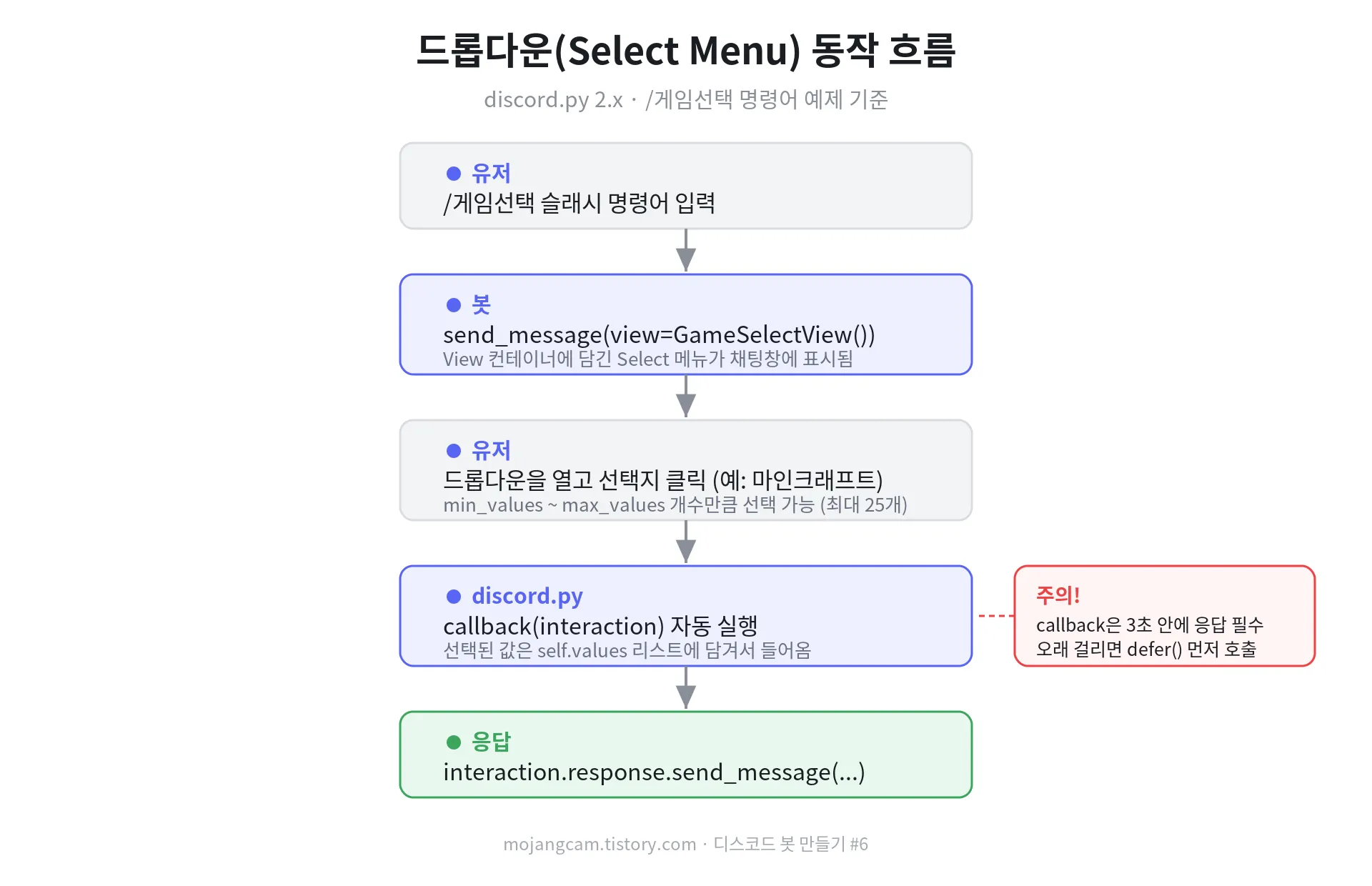
SelectOption: each individual choice shown in the dropdown.labelis the name shown on screen,valueis the value your code receives,descriptionis the gray description text, andemojiis the emoji shown in front.placeholder: the hint text shown when nothing is selected yet.min_values/max_values: the minimum and maximum number of choices. Setmax_values=3and it becomes a multi-select menu! (up to 25)callback: the function that runs when the user finishes choosing. The selected values come in through theself.valueslist.
📌 Step 2 - Putting It in a View
As we learned in the button part, every UI component has to be put in a container called a View before you send it.
class GameSelectView(discord.ui.View):
    def __init__(self):
        super().__init__(timeout=60)  # disable after 60 seconds
        self.add_item(GameSelect())
By the way, a single dropdown takes up an entire row of the View. A View can have up to 5 rows, so you can put up to 5 dropdowns in one View.
📌 Step 3 - Sending It with a Slash Command
intents = discord.Intents.default()
bot = commands.Bot(command_prefix="!", intents=intents)

@bot.event
async def on_ready():
    await bot.tree.sync()
    print(f"✅ {bot.user} bot is ready!")

@bot.tree.command(name="게임선택", description="Pick your favorite game!")
async def game_select(interaction: discord.Interaction):
    await interaction.response.send_message("Make your choice below! 👇", view=GameSelectView())

bot.run("Token")
📌 Full Code (Copy-Paste OK)
# discord.py 2.x / Python 3.8+
import discord
from discord.ext import commands

class GameSelect(discord.ui.Select):
    def __init__(self):
        options = [
            discord.SelectOption(label="Minecraft", value="Minecraft", description="A world built from blocks", emoji="⛏️"),
            discord.SelectOption(label="ARK: Survival", value="ARK: Survival", description="Survive alongside dinosaurs!", emoji="🦖"),
            discord.SelectOption(label="Valorant", value="Valorant", description="5v5 tactical FPS", emoji="🔫"),
        ]
        super().__init__(placeholder="Choose your favorite game!", min_values=1, max_values=1, options=options)

    async def callback(self, interaction: discord.Interaction):
        await interaction.response.send_message(
            f"🎮 {interaction.user.mention} chose **{self.values[0]}**!"
        )

class GameSelectView(discord.ui.View):
    def __init__(self):
        super().__init__(timeout=60)
        self.add_item(GameSelect())

intents = discord.Intents.default()
bot = commands.Bot(command_prefix="!", intents=intents)

@bot.event
async def on_ready():
    await bot.tree.sync()
    print(f"✅ {bot.user} bot is ready!")

@bot.tree.command(name="게임선택", description="Pick your favorite game!")
async def game_select(interaction: discord.Interaction):
    await interaction.response.send_message("Make your choice below! 👇", view=GameSelectView())

bot.run("Token")
📌 Result
When you type /게임선택 (game select), the bot sends a message with a dropdown attached, and when you pick a game from the menu, it replies with "🎮 OO chose Minecraft!"
💡 Bonus: there are also dedicated dropdowns for picking users, roles, and channels! With discord.ui.UserSelect, discord.ui.RoleSelect, and discord.ui.ChannelSelect, you don't have to build the choices yourself. The server's user/role/channel list shows up automatically. I'll cover these in detail when I get the chance!
📌 Common Errors
1. This interaction failed
This happens when the callback doesn't respond within 3 seconds. If your processing takes a while, call await interaction.response.defer() first, then reply with interaction.followup.send().
2. The dropdown is grayed out and disabled
Once the View(timeout=60) time runs out, the component expires. If the menu needs to keep working, set timeout=None. (To keep it working even after the bot restarts, you need a persistent view + a custom_id, which I'll cover in an advanced part!)
3. TypeError: __init__() got an unexpected keyword argument 'options'
You get this error when you pass options to a dedicated select like UserSelect instead of discord.ui.Select. When you define your own choices, always use the basic discord.ui.Select.
📌 Wrapping Up
Today we learned how to neatly fit up to 25 choices into a dropdown (Select Menu). We've gone from buttons to dropdowns, so in the next part we'll cover how to get text input directly from users with a Modal! Stay tuned 🙌
📚 Discord Bot Tutorial Series
- Mastering Slash Commands
- Adding Options (Arguments) to Slash Commands
- Adding Subcommands to Slash Commands
- Sending Embeds with Slash Commands
- Implementing Button Interactions
- Implementing a Dropdown (Select Menu) ← You are here!
Series · Part 6 of 32
Discord Bot Tutorial
- #1Discord Bot Tutorial - Mastering Slash Commands!
- #2Adding Options (Arguments) to Slash Commands!
- #3Adding Subcommands to Slash Commands!
- #4Sending Embeds with Slash Commands!
- #5Implementing Button Interactions!
- #6Implementing a Dropdown (Select Menu)!You are here
- #7Getting User Input with a Modal (Python Example)
- #8Styling Embeds with Images and Fields (Python Example)
- #9Connecting AI (Claude & ChatGPT API) to Your Bot! (Python Example)
- #10Adding Multi-Language (i18n) Support! (Python Example)
- #11Building a Web Dashboard with Flask! (Python Example)
- #12Managing Command Cooldowns and Permissions! (Python Example)
- #13Automating Roles and Channels to Manage Your Server! (Python Example)
- #14Saving Data! JSON vs SQLite (Python Example)
- #15슬래시 명령어 그룹(Group)으로 명령어 정리하기! (파이썬 예제) (Korean)
- #16리마인더·알림 기능 만들기! 봇이 먼저 말 걸게 하기 (파이썬 예제) (Korean)
- #17RAG로 문서 기반 답변봇 만들기! 우리 서버 전용 FAQ 봇 (파이썬 예제) (Korean)
- #18투표(Poll) 기능 만들기! 다수결로 정하는 서버 규칙 (파이썬 예제) (Korean)
- #19Cog로 코드 쪼개기! 1000줄 봇도 안 더러워지는 구조 (파이썬 예제) (Korean)
- #20자동 환영 메시지·온보딩 만들기! 규칙 동의 버튼으로 자동 역할 부여 (파이썬 예제) (Korean)
- #21키워드 자동응답·금지어 필터 만들기! 경고 누적으로 자동 제재까지 (파이썬 예제) (Korean)
- #22슬래시 명령어 자동완성(Autocomplete) 만들기! 금지어를 골라서 추가·삭제 (파이썬 예제) (Korean)
- #23aiosqlite로 비동기 DB 제대로 설계하기! JSON 탈출 (파이썬 예제) (Korean)
- #24채널 난독화(Channel Obfuscation) 대응하기! 11/16부터 안 보이는 채널이 생겨요 (파이썬 예제) (Korean)
- #25봇이 죽지 않게! 에러 핸들링·로깅 체계 잡기 (파이썬 예제) (Korean)
- #26티켓(Ticket) 문의 시스템 만들기! 버튼 하나로 1:1 상담 채널 자동 생성 (파이썬 예제) (Korean)
- #27티켓 담당자 배정·우선순위 만들기! 스태프가 여러 명이어도 안 꼬이게 (파이썬 예제) (Korean)
- #28레벨·경험치(XP) 시스템 만들기! 채팅할수록 레벨업, 랭킹판까지 (파이썬 예제) (Korean)
- #29화폐·상점(Economy) 시스템 만들기! 코인 벌어서 아이템 사기 (파이썬 예제) (Korean)
- #30Build a Poll & Survey Bot! Native Polls + Buttons with Real-Time Tallies (Python Example) 🗳️
- #32Build a Server Log & Audit Log Channel! Auto-Log Message Deletes, Edits, Joins/Leaves, and Kicks (Python Example) 🕵️
- #33임시 음성방 확장, 파티방 만들기! 방장 위임·강퇴·초대 전용(비공개) 방 + 전용 채팅방 자동 생성 (파이썬 예제) 🎉 (Korean)
Show all 32Collapse
